ip
Chatty User Guide
Introduction
Chatty is a simple yet powerful task management chatbot designed to help you organize your tasks efficiently. It supports adding different types of tasks, marking them as completed, searching for tasks, and more—all through a command-line interface. This guide will walk you through how to install and use Chatty effectively.
Quick Start
- Ensure you have Java 17 or above installed on your computer.
- Mac users: Ensure you have the exact JDK version prescribed here.
- Windows & Linux users: Download Java from Oracle’s official website or install it using your package manager.
-
Download the latest
.jarfile from here. -
Copy the file to the folder you want to use as the home folder for your Chatty bot.
- Open a command terminal:
cdinto the folder where you placed thechatty.jarfile.
- Run the application using the following command:
java -jar chatty.jar -
The GUI should appear in a few seconds similar to the picture below.
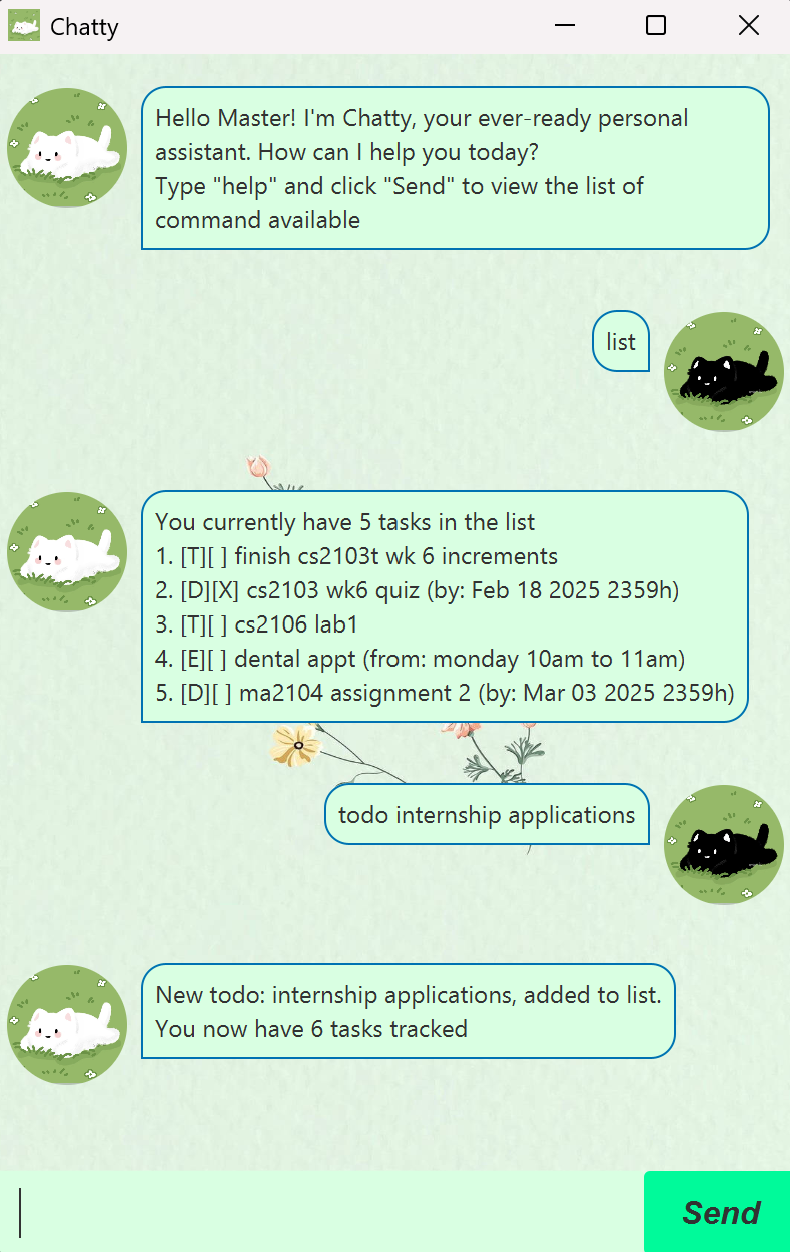
- Type your commands into the text field and press Send to execute them.
For example, typing
helpand pressing Send will display a list of available commands.
Available Commands
Warning: All commands are case-sensitive and must be typed in lowercase.
1. todo [task]
Adds a new task without a deadline.
Example: todo buy groceries
2. deadline [task] /by [dd/mm/yyyy hhmm]
Adds a task with a specific deadline.
Example: deadline submit assignment /by 20/02/2025 2359
3. event [task] /from [start date/time] /to [end date/time]
Adds an event with a duration.
Example: event dental appointment /from 05-03/25 10am /to 11am
4. list
Displays all tasks.
Example: list
5. mark [task number]
Marks a specific task as completed.
Example: mark 2
6. unmark [task number]
Marks a specific task as not completed.
Example: unmark 2
7. find [keyword]
Finds all tasks containing the specified keyword (case-sensitive) in the description.
Example: find groceries
8. delete [task number]
Deletes a specific task.
Example: delete 3
9. help
Displays a list of available commands.
Example: help
10. bye
Exits the application.
Example: bye
Command Summary
| Command | Description |
|---|---|
todo [task] |
Adds a new task without a deadline. |
deadline [task] /by [dd/mm/yyyy hhmm] |
Adds a task with a specific deadline. |
event [task] /from [start date/time] /to [end date/time] |
Adds an event with a specific date. |
list |
Displays all tasks. |
mark [task number] |
Marks a specific task as completed. |
unmark [task number] |
Marks a specific task as not completed. |
delete [task number] |
Deletes a specific task. |
help |
Displays a list of available commands. |
find [keyword] |
Finds all tasks containing the specified keyword. |
bye |
Exits the application. |
Additional Features
Data Storage
Chatty automatically saves your tasks in a local file. The next time you run Chatty, your previous tasks will still be available.
Error Handling
If you enter an incorrect command, Chatty will notify you and provide guidance on the correct format.
Troubleshooting
Chatty does not start when I run the .jar file.
- Ensure you have Java 17 or later installed.
- Check that you are in the correct directory where chatty.jar is located.
- Try running
java -versionto verify your Java installation.
Chatty does not save my tasks after restarting.
- Make sure you have write permissions for the folder where chatty.jar is stored.
- The storage file might be corrupted. Try deleting it and running Chatty again.
How do I reset Chatty?
- Delete the task storage file (chatty.csv) in the home folder where chatty.jar is stored.
- Restart Chatty.